Welcome to Code Bee!
Code Bee is designed to help students and users gain in-depth knowledge of programming, focusing on VB.NET and Java. This platform provides interactive lessons, coding challenges, and a practical environment to improve problem-solving skills and confidence.
Why Learn with Code Bee?
Code Bee enhances your coding skills by providing a structured and hands-on learning experience. Whether you're a beginner or looking to refine your skills, our lessons ensure you grasp key programming concepts in a fun and interactive way.
Why Learn VB.NET?
VB.NET is a powerful programming language that is widely used for developing Windows applications. Learning VB.NET equips you with essential skills for building user-friendly applications, automating tasks, and working within the .NET framework.
Get Started
Begin your coding journey with Code Bee and unlock endless opportunities in software development! Dive into our comprehensive lessons, tackle coding challenges, and watch your programming expertise soar.
Lesson 1: Introduction to VB.NET
Get started with VB.NET programming by learning the basics of project setup, your first program, and variable declarations.
Project Setup Tutorial
Follow these steps to create your first VB.NET project:
- Step 1: Open Microsoft Visual Studio 2010 on your computer.
- Step 2: Click New project → windows form application.
-
Step 3: Enter a Name (e.g.,
Example) and click Ok. - Step 4: Double-click your form to open the code editor.
Introduction to VB.NET
VB.NET is a versatile and powerful programming language used to develop Windows applications and enterprise systems. In this lesson, you'll set up a project and write your first line of code.
.png)
Your First VB.NET Program
Let's create a simple "Hello World" program:
MessageBox.Show("Hello World")Run the program by pressing F5 or clicking the Start button.
Expected Output
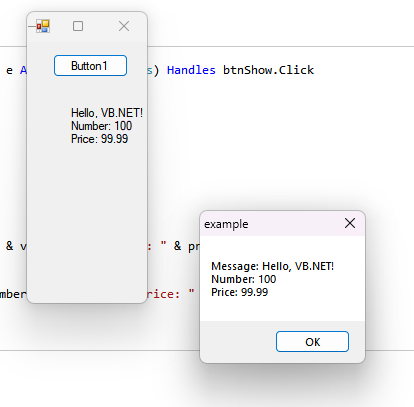
When you run the program, you should see this message box:
.png)
Working with Variables in VB.NET
Variables are containers that store data values in your program.
.png)
Basic Syntax:
Dim variableName As DataType = valueCommon Examples:
' Integer variable
Dim number As Integer = 100

' Double variable (decimal numbers)
Dim price As Double = 99.99

' String variable (text)
Dim message As String = "Hello World"
Practice Exercise
Try creating variables of different types and displaying their values using MessageBox.Show().
Lesson 2: Controls and Conditional Statements
Learn how to work with Windows Forms controls and implement decision-making in your programs.
Working with Controls
Learn how to add and configure basic controls in your Windows Forms application.
Adding Controls
-
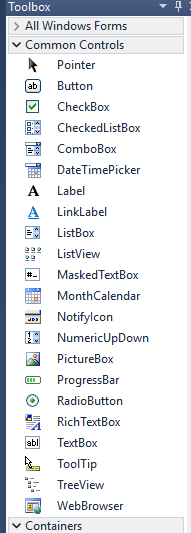
Find the Toolbox: Locate the Button and Label controls in the toolbox.
-
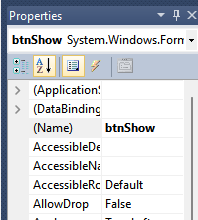
Configure Button: Rename the button to "btnShow" in the Properties window.
-
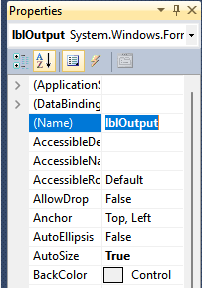
Configure Label: Rename the label to "lblOutput".
Handling Button Clicks
Learn how to respond to button clicks and update the label text.
-
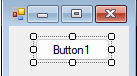
Add Event Handler: Double-click the button to create the click event handler.
Initial State

When the program starts, the label is empty and waiting for user interaction.
After Button Click
The label updates when the button is clicked, showing the message.
If Statements in VB.NET
Learn how to make decisions in your code using If-ElseIf-Else statements.
How If Statements Work
- If the condition is True, the code inside the block executes
- If the condition is False, the code inside the block is skipped
Low Number Example
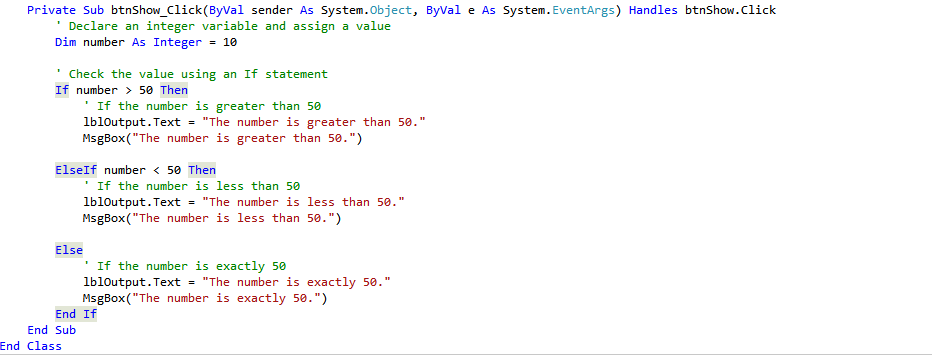
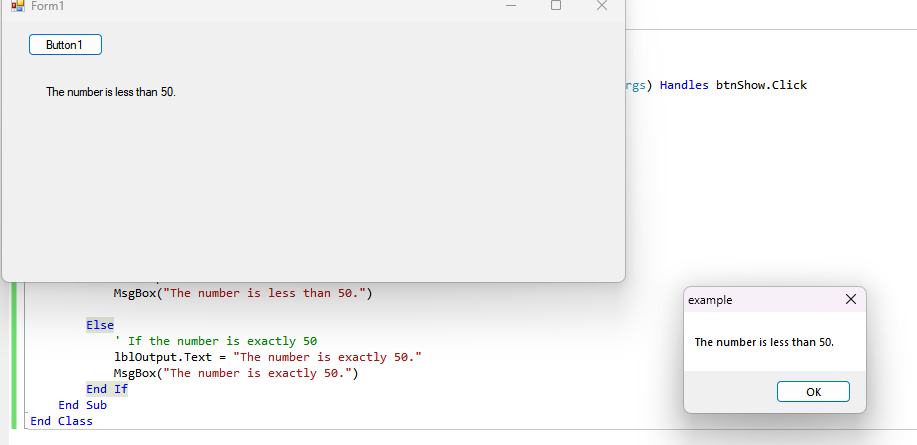
When number = 10, the condition if (number > 50) is false and skipped,
while else if (number < 50) is true, so the program prints LESS.
High Number Example
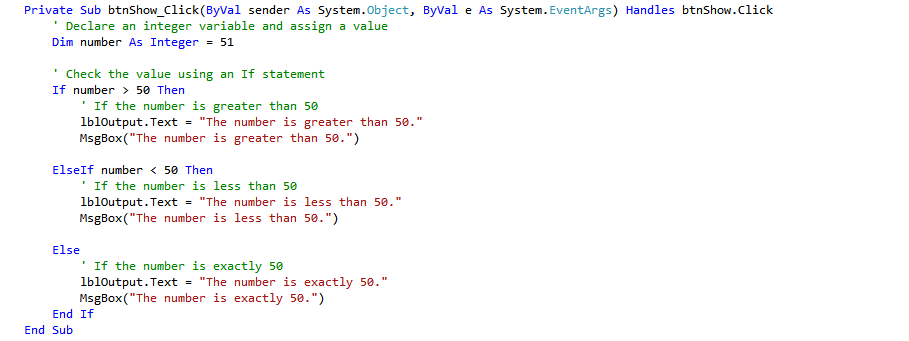
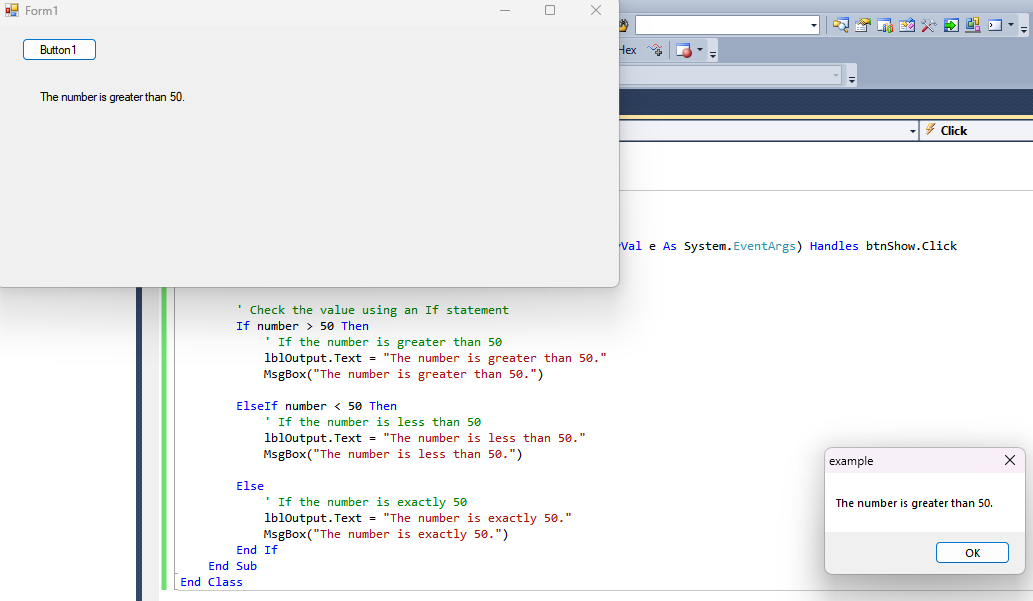
When number = 51, the condition if (number > 50) is true,
so the program prints HIGH.
Equal Number Example
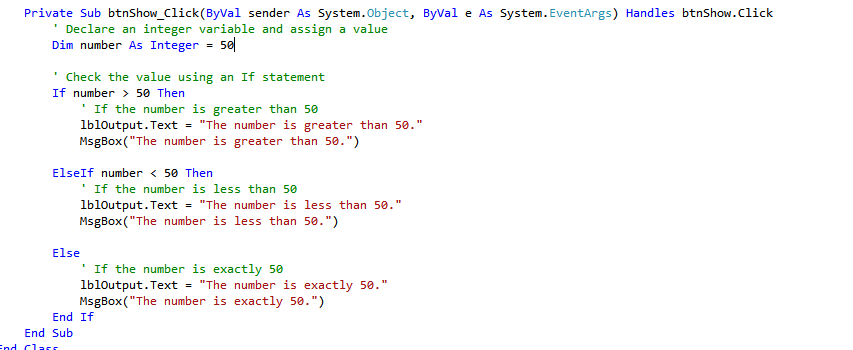
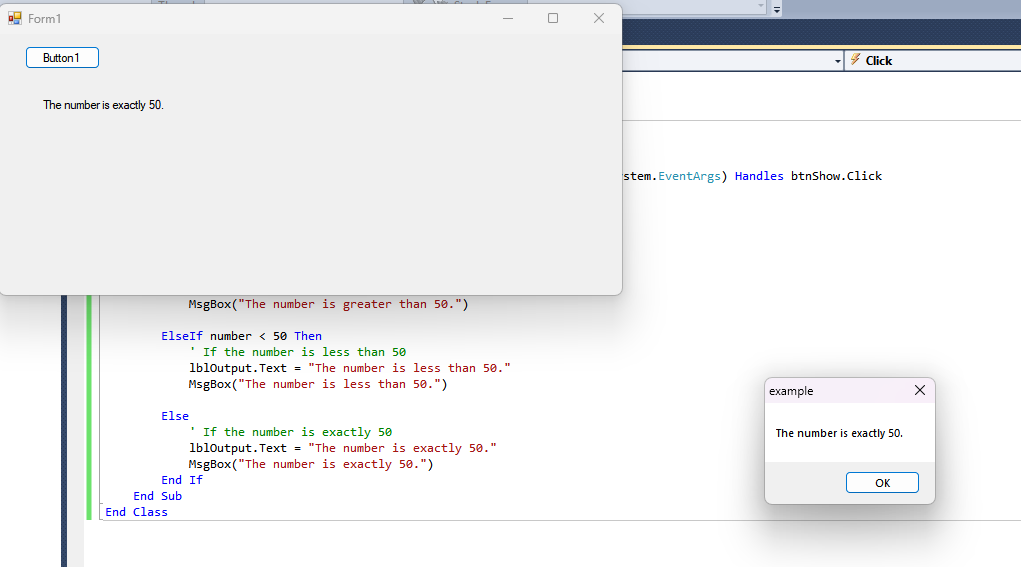
When number = 50, the else condition is true,
so the program prints The number is equal to 50.
Practice Exercise
Create a program that:
- Has a textbox for user input
- Has a button to check the number
- Uses If-ElseIf-Else to display different messages based on the input
Lesson 3: Advanced VB.NET Concepts
Error Handling in VB.NET
Error handling is crucial in VB.NET to manage and handle runtime errors gracefully. The Try-Catch block is the primary mechanism for this.
Try-Catch Block Syntax:
Try
    ' Code that might cause an error
    Dim result As Integer = 10 / 0  ' This will cause a division by zero error
Catch ex As Exception
    ' Handle the error here
    MessageBox.Show("An error occurred: " & ex.Message)
End Try
How it works:
- The
Tryblock contains code that might cause an error - The
Catchblock handles any errors that occur ex As Exceptioncaptures the error detailsEnd Trymarks the end of the error handling block
Class Declaration in VB.NET
Classes are the foundation of Object-Oriented Programming in VB.NET. They allow you to create custom types that encapsulate data and behavior.
Class Declaration Syntax:
Public Class Student
    ' Properties
    Public Property Name As String
    Public Property Age As Integer

    ' Constructor
    Public Sub New(name As String, age As Integer)
        Me.Name = name
        Me.Age = age
    End Sub

    ' Methods
    Public Function GetInfo() As String
        Return $"Name: {Name}, Age: {Age}"
    End Function
End Class
Key Components:
Public Classdeclares a class accessible from other files- Properties store data (Name, Age)
- Constructor (New) initializes the object
- Methods define behavior (GetInfo)
End Classmarks the end of the class definition
Select Case Statement in VB.NET
The Select Case statement is an alternative to multiple If-ElseIf statements, making code more readable when dealing with multiple conditions.
Select Case Syntax:
Select Case grade
    Case "A"
        MessageBox.Show("Excellent!")
    Case "B"
        MessageBox.Show("Good job!")
    Case "C"
        MessageBox.Show("Fair")
    Case Else
        MessageBox.Show("Need improvement")
End Select
How it works:
Select Casestarts the statement- The expression to evaluate follows (grade in this example)
- Each
Casechecks for a specific value Case Elsehandles any unmatched valuesEnd Selectmarks the end of the statement
Practical Example:
Dim day As Integer = 3
Select Case day
    Case 1
        MessageBox.Show("Monday")
    Case 2
        MessageBox.Show("Tuesday")
    Case 3
        MessageBox.Show("Wednesday")
    Case 4
        MessageBox.Show("Thursday")
    Case 5
        MessageBox.Show("Friday")
    Case 6, 7
        MessageBox.Show("Weekend")
    Case Else
        MessageBox.Show("Invalid day")
End Select
Practice Exercise
Try creating a program that combines these concepts:
- Create a class called "Calculator"
- Add a method that performs division
- Use Try-Catch to handle division by zero
- Use Select Case to display different messages based on the result
Solution:
Public Class Calculator
    Public Function Divide(a As Integer, b As Integer) As String
        Try
            Dim result As Double = a / b
            Select Case result
                Case Is > 10
                    Return "Result is greater than 10"
                Case Is > 5
                    Return "Result is between 5 and 10"
                Case Else
                    Return "Result is less than or equal to 5"
            End Select
        Catch ex As Exception
            Return "Error: " & ex.Message
        End Try
    End Function
End Class
Lesson 4: Coming Soon
This lesson is currently under development. Please check back later for new content.
Lesson 5: Coming Soon
This lesson is currently under development. Please check back later for new content.